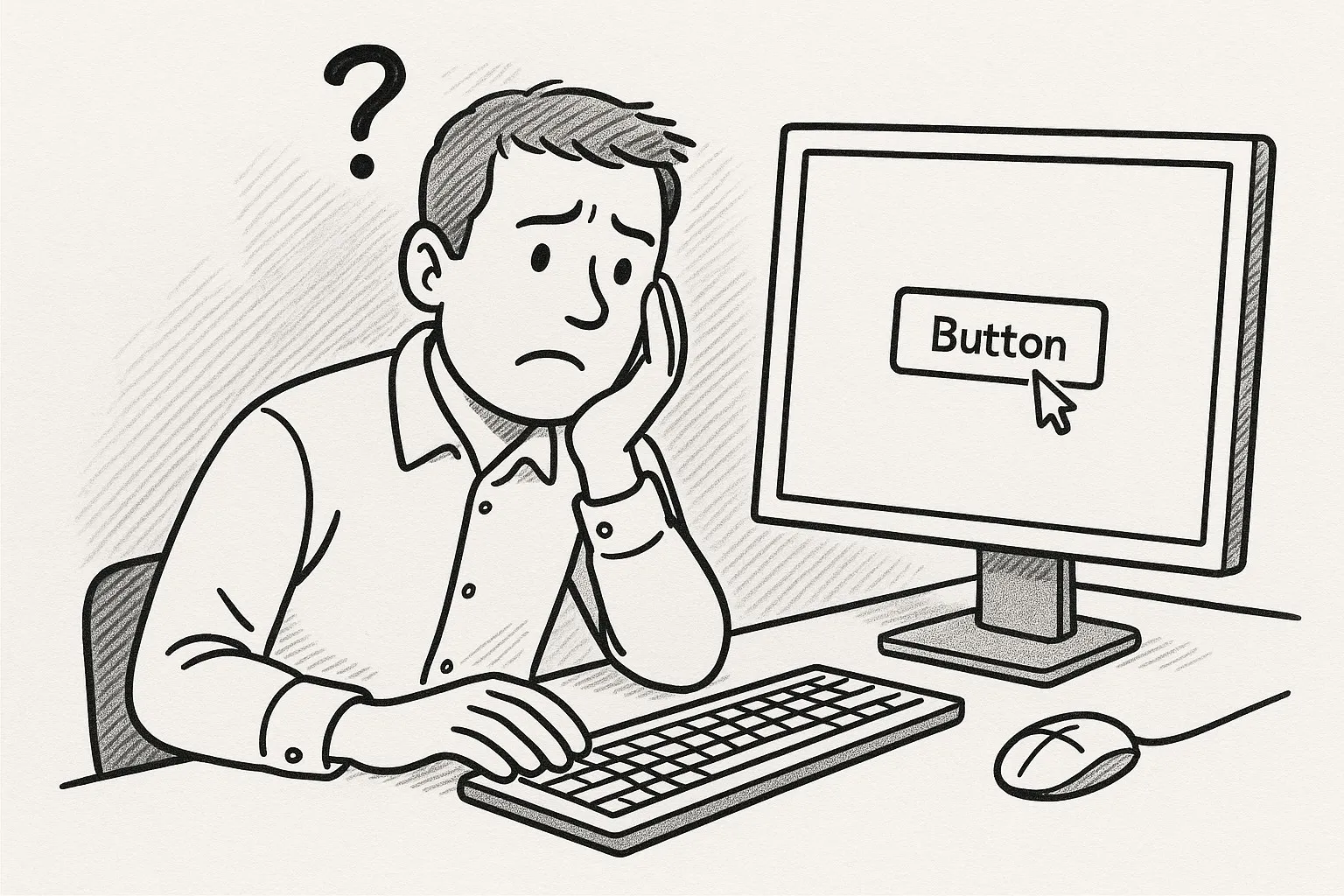
Ever clicked a button in Business Central and wondered if anything was happening?
You’re not alone. Silence feels like failure when a process takes more than a few seconds.
Most users respond by clicking again. Or refreshing.
That’s how duplicate entries, interrupted workflows, and frustration creep in.
Feedbacks prevent this. One option is to have a successful message.
This time, let’s focus on another feedback called the Progress Dialog.
Why Progress Dialog Matters
ERP tasks take time. Posting journals, running reports, importing data. None are instant.
Without feedback, users think the system froze. With feedback, they trust it’s working.
-
A 1-minute task with feedback feels fine.
-
A 1-minute task without feedback feels broken.
That’s the power of Progress Dialog.
It shows:
-
The process started.
-
Where it is (if possible).
-
When it finishes.
This small dialog builds confidence.
When to Use Progress Dialog
Not every action needs one. Use them when:
-
A task takes more than a couple of seconds.
-
It processes many records.
-
It has multiple steps.
Example of Progress Dialog
In AL, Progress Dialog is simple to add:
procedure LongRunningTask()
var
    ProgressDialog: Dialog;
begin
    ProgressDialog.Open('Processing... #1############');
    ProgressDialog.Update(1, 'Importing files');
    ImportSomething();

    ProgressDialog.Update(1, 'Validating data');
    DoSomething();

    ProgressDialog.Update(1, 'Posting journals');
    PostingSomething();

    ProgressDialog.Close();
    Message('Journal was posted successfully.');
end;.
Pattern:
-
Open the dialog at the start.
-
Update it as steps progress.
-
Close it with a success message.
It only takes a few lines of AL, but the UX improvement is huge.
Tips for Writing Better Progress Dialog
A simple message like “Posting sales invoice…” gives reassurance that Business Central is doing the work.
But progress dialogs can also backfire if used carelessly. Too many, too long, or too vague, and they become an obstacle instead of a help.
Want to improve your progress dialog messages? Here’s some tips:
1. Start Immediately
Show the first message as soon as the task starts.
2. Clear Message. Be specific.
Avoid generic “Processing…” messages. Tell the user exactly what is happening. Explain the step in plain language.
❌ Processing…
✅ Validating journal lines…
3. Break into Steps
Give users milestones, not one long processing task. Update the dialog at meaningful points so the user sees progress.
❌ Processing…
✅ Step 2: Posting lines…
4. Keep It Short and Clear
Make each message scannable. Long sentences slow them down.
❌ Checking all journal lines you imported…
✅ Checking data…
5. Show Counts or Percentages when possible
Progress feels faster with numbers. You don’t need to update for every count, but show movement. If the process is relatively quick for each count, you can update it for every ten counts or more.
❌ Posting records…
✅ Posting 35 of 200 records…
6. Reassure at the end
Never just end with the dialog. Always finish with a good success message.
✅ Journal posted successfully.
7. Don’t overuse it
Not every task needs one. If the process takes less than a few seconds, a progress dialog add clutter instead of clarity.
Final Thoughts
Users hate waiting without feedback. Show progress, and slow tasks feel faster.
Find one process in your solution that leaves users uncertain. Add a Progress Dialog.
Small changes here make a big impact on how users feel about Business Central.