One of the requirements that users asked is the ability to batch email customer statement. Since there is no standard way of doing this in NAV or BC, we always ended up developing an extension for them.
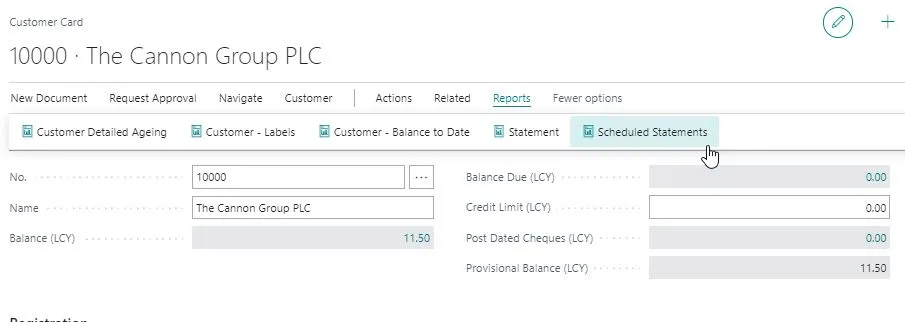
Well, not anymore. I noticed recently that there is a new “Scheduled Statements” button on the Customer card. How does it work ?
Let’s first talk about the setup. We need to setup a Document Layout per Customer to determine the email address and the layout that you are going to use to send the email.
Under the Document Layouts, insert a Customer Statement layout and the email address.
After you setup the Document Layout, you should be able to schedule the customer statement. Go to Customer Card and click on Scheduled Statement.
You have an option to choose your parameter there, such as Start Date, End Date, or Include All Customers with a Balance, you can also filter the Customers. On the Output Options section, you can select the Report Output as Email. When you are happy with the setup, click OK.
BC will ask you whether you want to run it immediately or not. It will then create a job queue entry for you. When job queue runs, BC will send email to the customers.
Unfortunately, this method only works for report using Word layout. Report with RDLC layout, such as AU/NZ Statement will not work.