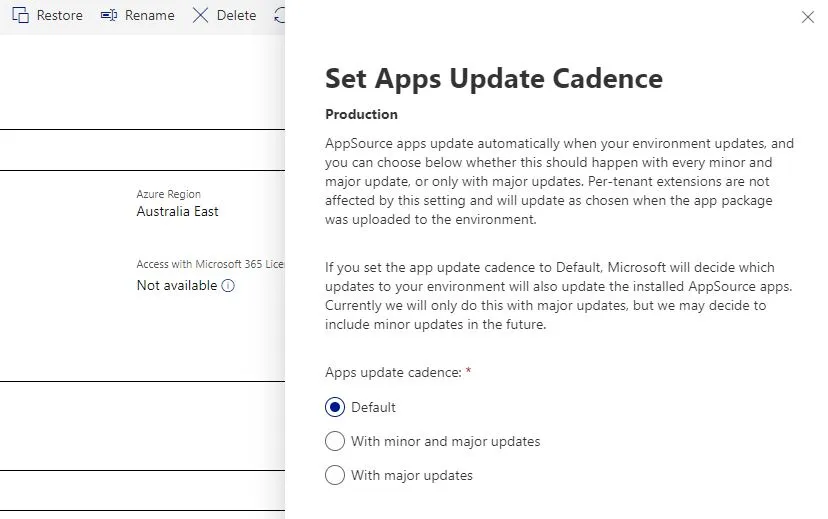
With Dynamics 365 Business Central SaaS, you might have noticed that AppSource apps are automatically updated to the latest version when your tenant receives a major update. This ensures that your apps are always compatible with the latest features and improvements of Business Central.
However, you should also update your apps more frequently, especially if the app developers release new features or bug fixes you want to take advantage of. Up until now you can update individual apps from the App Management page in the Business Central admin center.
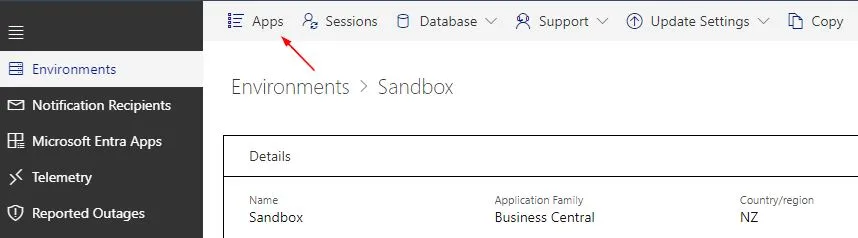
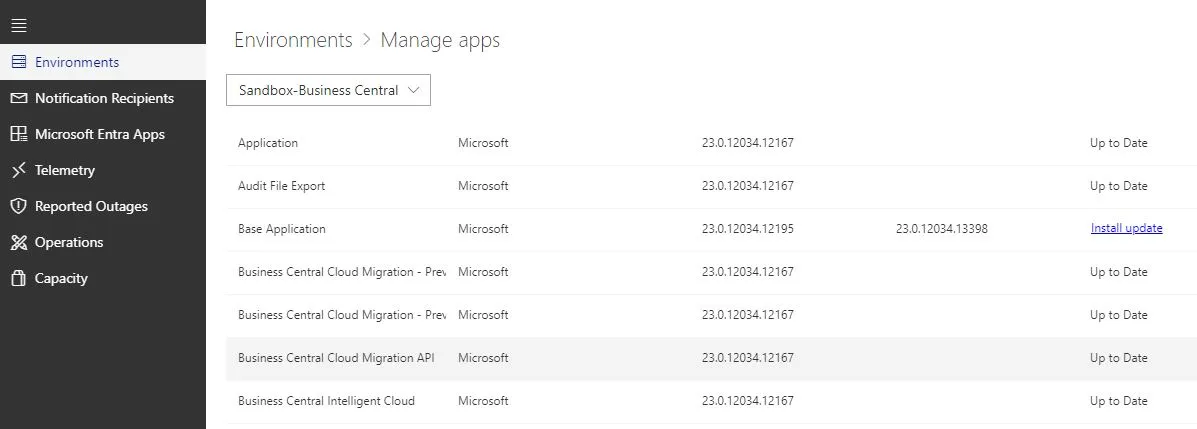
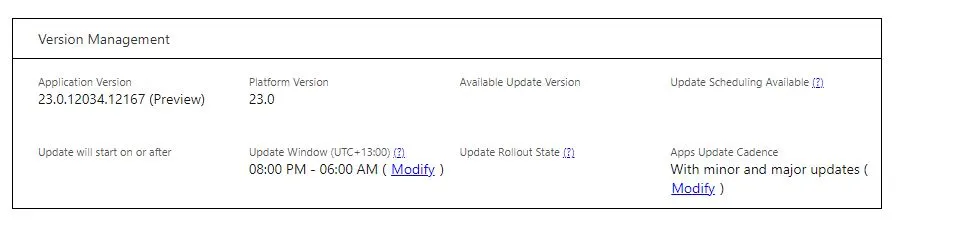
In the 2023 release wave 2 (BC23) of Business Central, Microsoft has introduced a new setting called Apps Update Cadence. This setting allows you to choose whether you want your apps to update automatically with every minor and major update of your tenant, or only with major updates.
Apps Update Cadence Setting
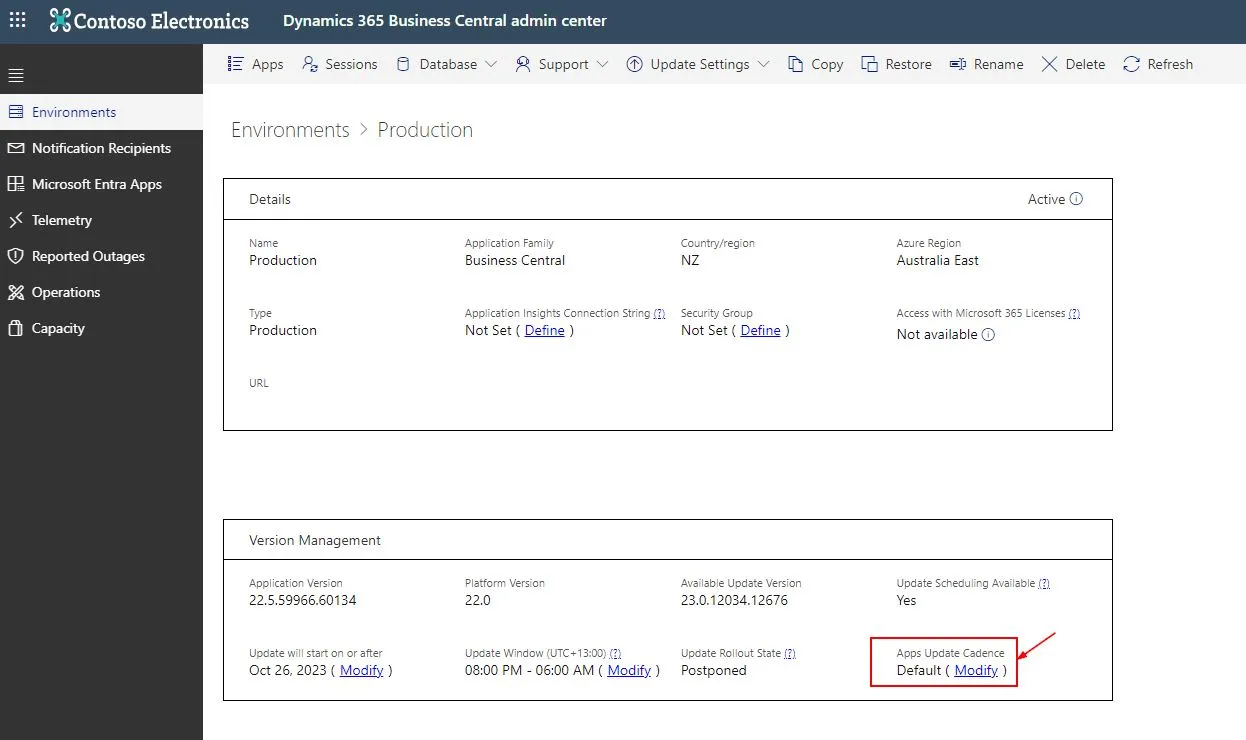
The Apps Update Cadence setting is per-environment, which means that you can have different settings for different environments in your tenant. For example, you might want to have more frequent app updates in your sandbox environment, but less frequent app updates in your production environment.
To change the Apps Update Cadence setting, follow these steps:
-
Go to the Business Central admin center and select an environment.
-
On the Environments page, under Apps Update Cadence, select one of the following options:
-
With minor and major updates: Your AppSource apps will be updated during every minor and major update applied to your tenant. This is the recommended option if you want to always have the latest version of your apps.
-
With major updates: Your AppSource apps will be updated only during a major update of your tenant.
-
Default: Microsoft will decide which updates to your environment will also update the installed AppSource apps. Currently, this happens only with major updates, but Microsoft may change this in the future.
-
-
Click Save.
Conclusion
With the new Apps Update Cadence setting and the ability to manually update individual apps, you have more flexibility and control over how your AppSource apps are updated in Dynamics 365 Business Central SaaS.