If you use Edit in Excel in Microsoft Dynamics 365 Business Central, you know how useful it is. It lets you open records directly in Excel, make quick edits, and publish them back to Business Central.
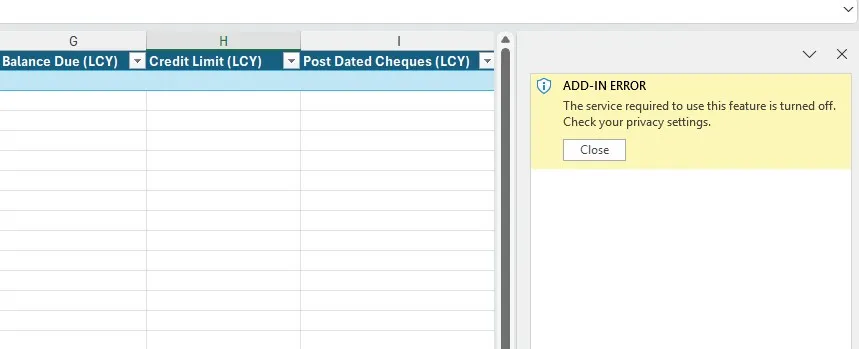
But sometimes you might see below add-in error message when you try to use Edit in Excel.
ADD-IN ERROR. The service required to use this feature is turn off. Check your privacy settings.
The fix is simple.
Follow these steps in Excel:
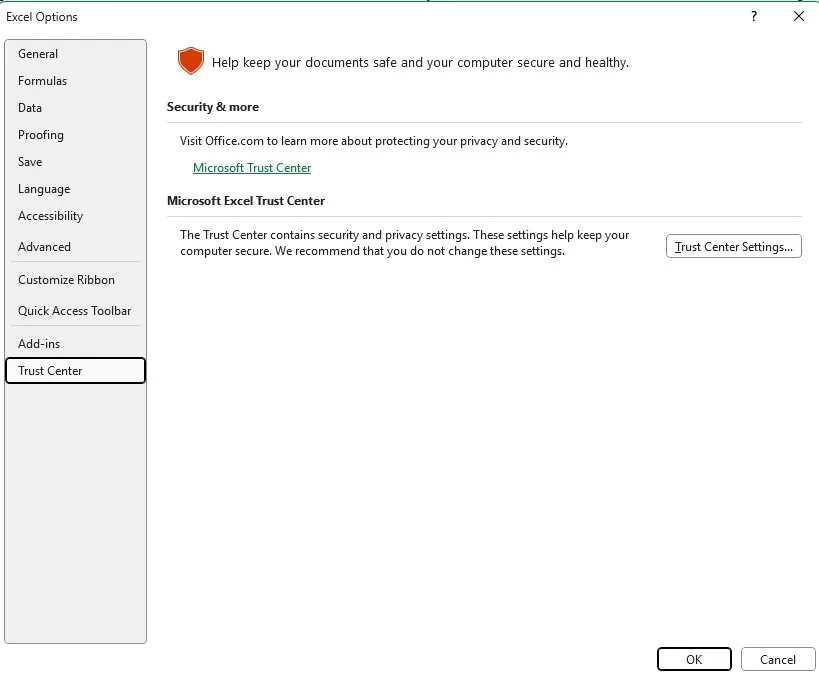
Go to File → Options → Trust Center → Trust Center Settings.
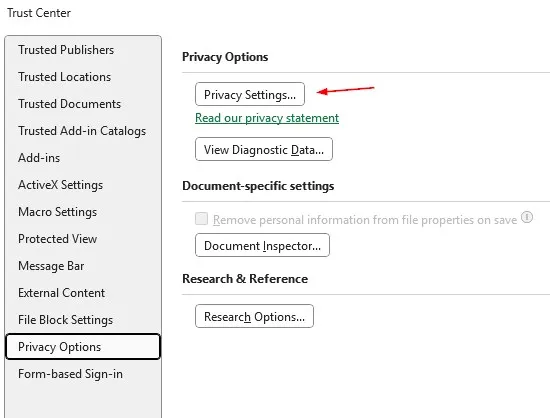
Select Privacy Settings.
Enable “Turn on optional connected experiences”.
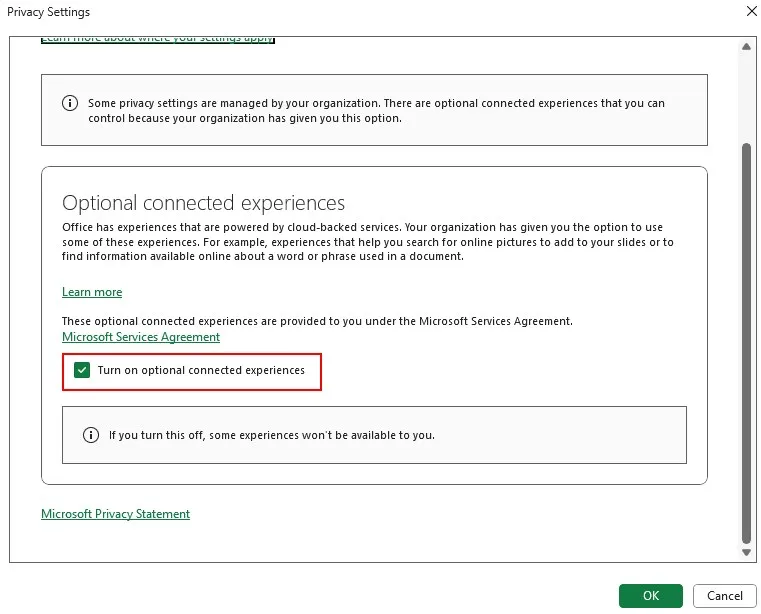
Click OK to save.
Restart the Excel and try again. It should now work normally.