Here’s a problem that I had.
I work across multiple Business Central repos. One per client, one per module. And somewhere along the way, you ended up with the same file copy-pasted into different places.
Now multiply that by config and AI tools.
The Problem
I use AI agents in my workflow. Instructions, agents, naming conventions, and those other files that give the AI assistant context.
The thing is, most of that is the same across all my projects. But because every project lives in its own repo, I was duplicating these files everywhere. Then I’d update one, and I’d need to update the same file in each repo.
Sound familiar?
What I Built
To solve this, I vibe-coded a VS Code extension called SymLynx.
The idea is simple. Instead of duplicating config files, you keep one master copy and create symbolic links pointing to it from every project.
Your config lives in one place. Every repo points to it. Update the source once, every project picks it up instantly.
✅ No more copy-pasting ✅ No more config drift ✅ No more “why is my AI acting different in this workspace”
What’s a Symbolic Link?
You probably know what a shortcut is. You right-click a file on your Desktop, create a shortcut, and it points to the original. Simple.
The problem with shortcuts is that apps know they’re shortcuts. If you open a .lnk file in VS Code, VS Code sees a shortcut file, not the actual content. It doesn’t read through it.
A symbolic link is different. It sits at the filesystem level. When any app, VS Code, your compiler, your AI tool, opens a symlink, it just sees the real file. It has no idea there’s a redirect happening. It reads the content and writes to it, all as if the file were actually there.
Think of it like call forwarding. The caller never knows they were redirected.
How It Works
I keep a source folder outside my repos:
C:\Agents\
└──Developer.md
└──Tester.md
Then, in each BC project, we have a symlink pointing back to the source folder. It looks like a regular folder. VS Code, Claude, all treat it like one, but it’s reading from a single source of truth.
Setting it up takes three right-clicks. Right-click your shared file → Create Symlink from This → pick the target folder → done.
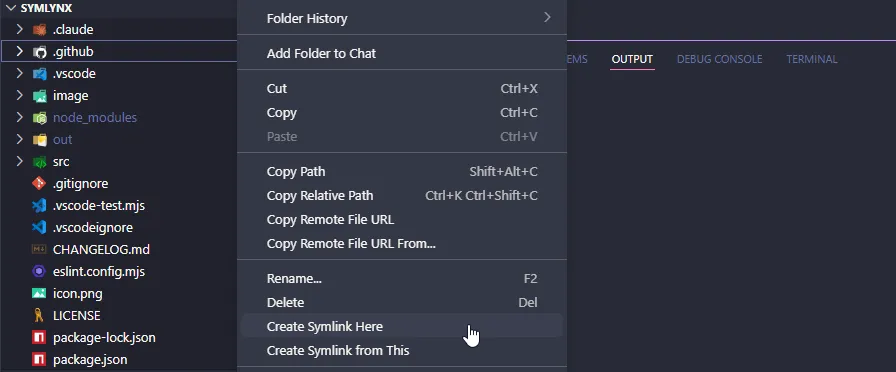
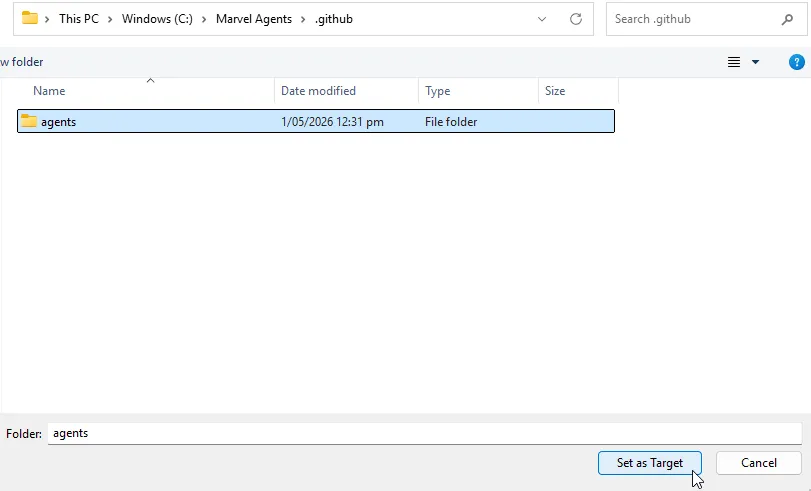
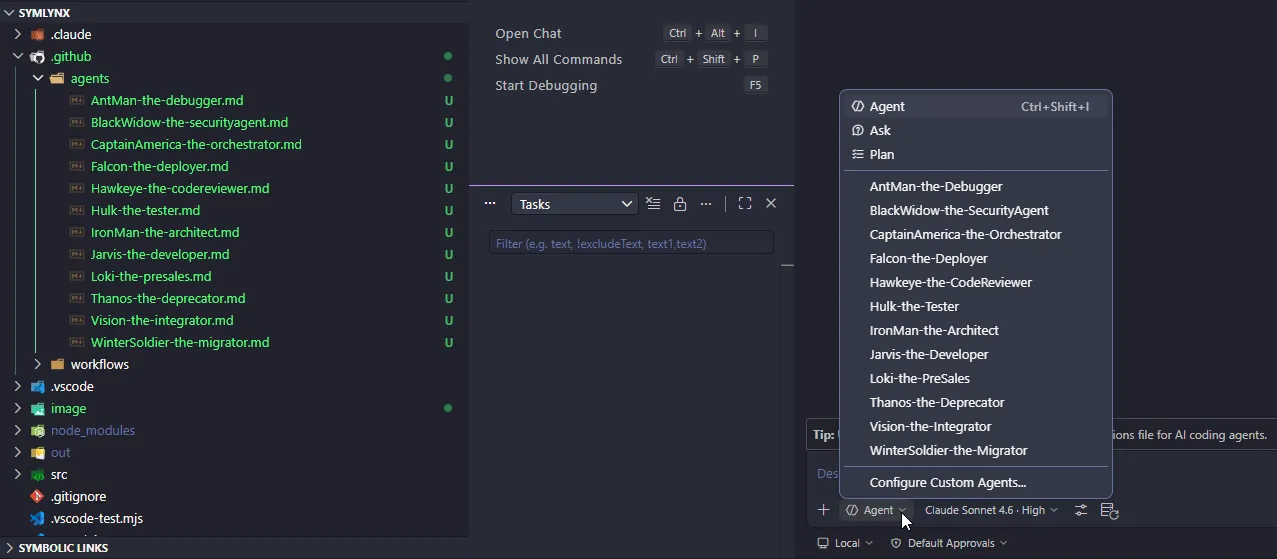
SymLynx handles all of that for you from inside VS Code. No terminal, no admin prompts (for most cases). If you do hit a permission issue with a file, enabling Developer Mode in Windows Settings usually fixes it.
The SymLynx Panel
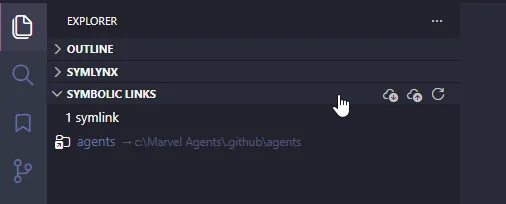
There’s a dedicated panel in the Explorer sidebar that shows all your links in one place. You can use Export / Import to replicate this link layout across projects.
Give It a Try
If you’re juggling multiple BC repos and tired of keeping files in sync manually, this is for you. You can use it for non-AI-related files, too.
Install from Marketplace GitHub Source
Have an interesting use case? Or found something broken? Drop a comment or open an issue. I’m still actively using and improving it.
One thing to watch, symlinks only work if the target path exists on the machine. If you commit a symlink to git, it’ll be broken on everyone else’s machine unless they have the same folder structure. Add your linked files to .gitignore to keep them local-only.