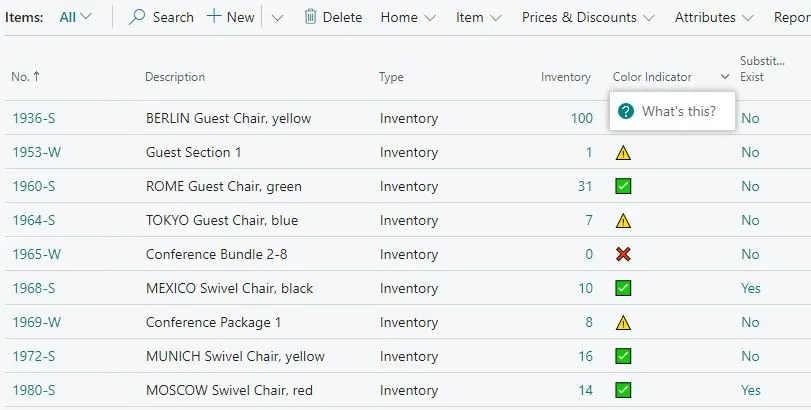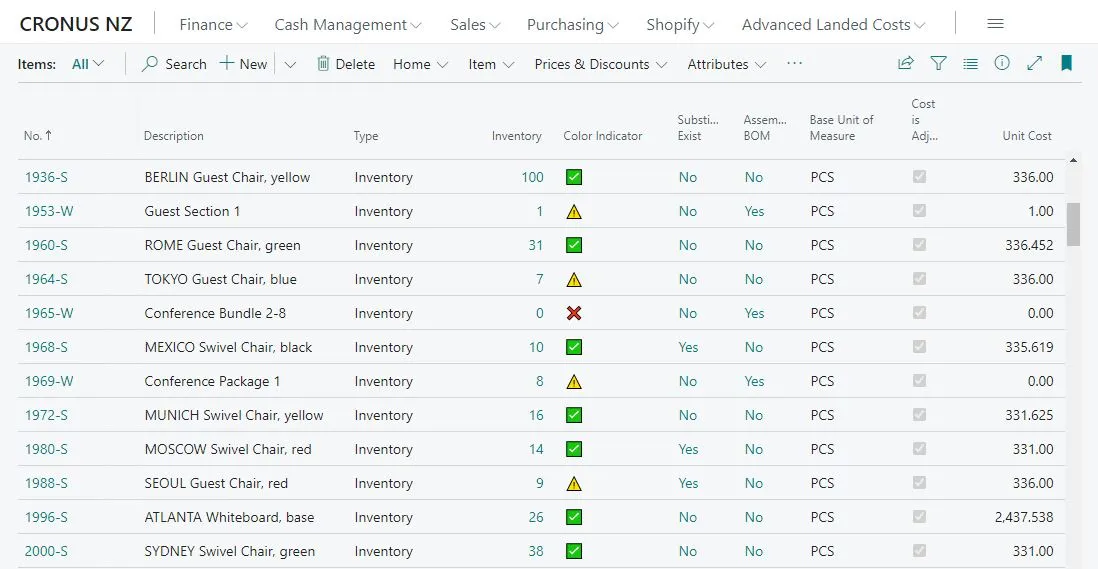
Using color or visual indicators is a great way to convey information quickly. They can represent different meanings, conditions, or statuses, making it easier for people to understand and interpret information without needing to read or process data. I have blogged about using Style Color to accomplish this. Another way to do this is to use Emojis as visual indicators.
Consider the scenario where we want Inventory Indicator on our Item List page. We want Red = Out of Stock, Yellow = Low Stock (less than 10), Green = In Stock. Let’s use Emojis as a visual indicator.
Below is the sample code.
pageextension 60111 "Item List_TNG" extends "Item List"
{
    layout
    {
        addafter(InventoryField)
        {
            field(InventoryIndicator_TNG; InventoryIndicator)
            {
                ApplicationArea = All;
                Caption = 'Inventory Indicator';
                ToolTip = 'Red = Out of Stock, Yellow = Low Stock, Green = In Stock';
                Editable = false;
            }
        }
    }

    trigger OnAfterGetRecord()
    begin
        if Rec.Inventory >= 10 then
            InventoryIndicator := '✅'
        else
            if Rec.Inventory > 0 then
                InventoryIndicator := '⚠️'
            else
                InventoryIndicator := '❌';
    end;

    var
        InventoryIndicator: Text;
}
That’s it. Nice and simple. While the method is straightforward, it’s worth noting that as a variable-based solution, we have a limitation on not being able to filter on it.