
When I’m working with Business Central as a consultant or developer, I often need to switch between tools to deploy extensions, compare app versions, or check active sessions. I wanted a way to handle those everyday tasks in one place, so I built BC Mission Control.
It’s a web app that runs on your own computer and lets you manage Business Central cloud environments and local Docker containers. I’ve made it available on GitHub under the MIT licence, so you can try it out and have a look.
What can you do with it?
For cloud work, you can manage environments, deploy per-tenant extensions, review installed apps and AppSource updates, compare app versions, and check sessions, storage, and app operations. You can also review upcoming Business Central platform updates and schedule the maintenance window.
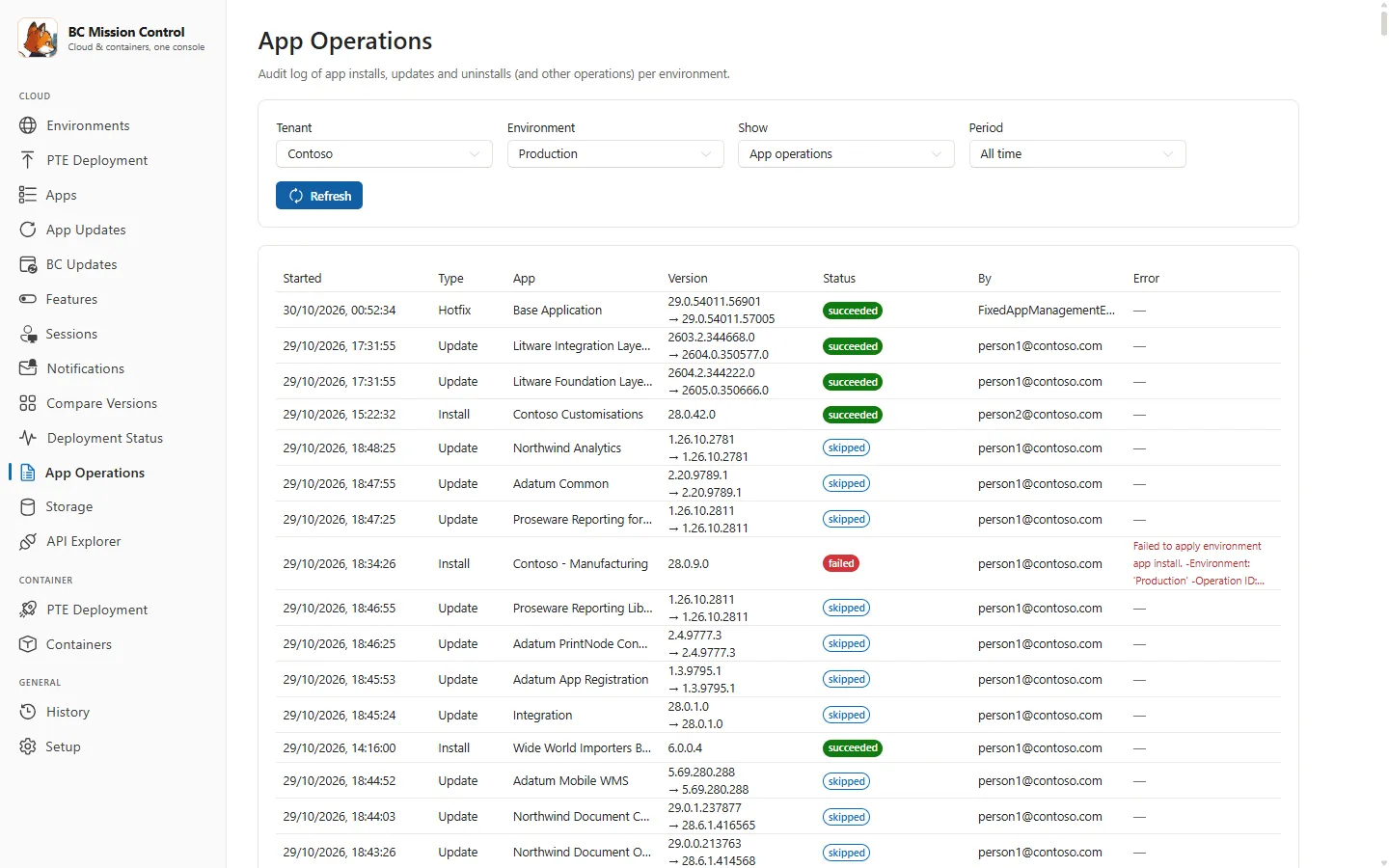
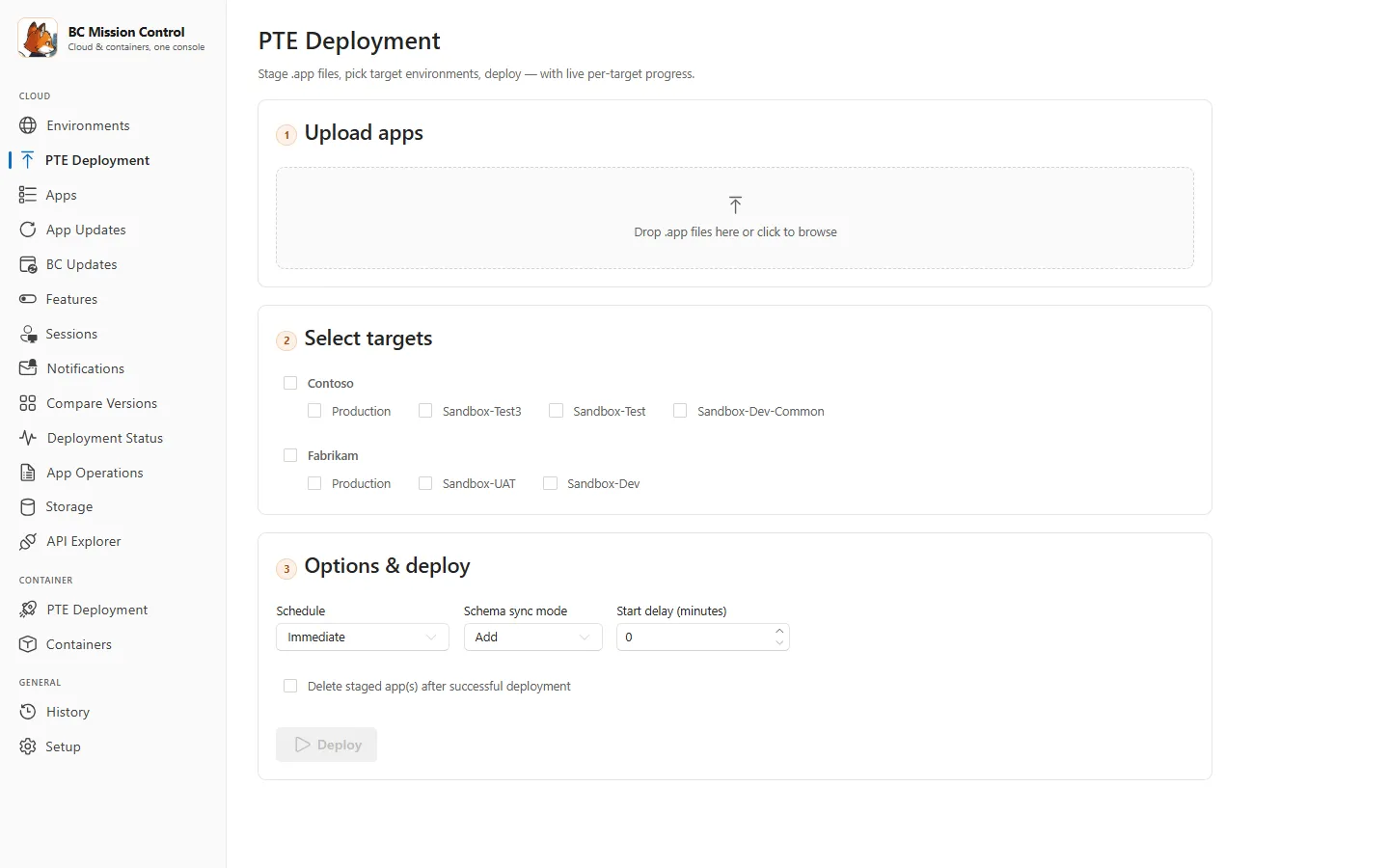
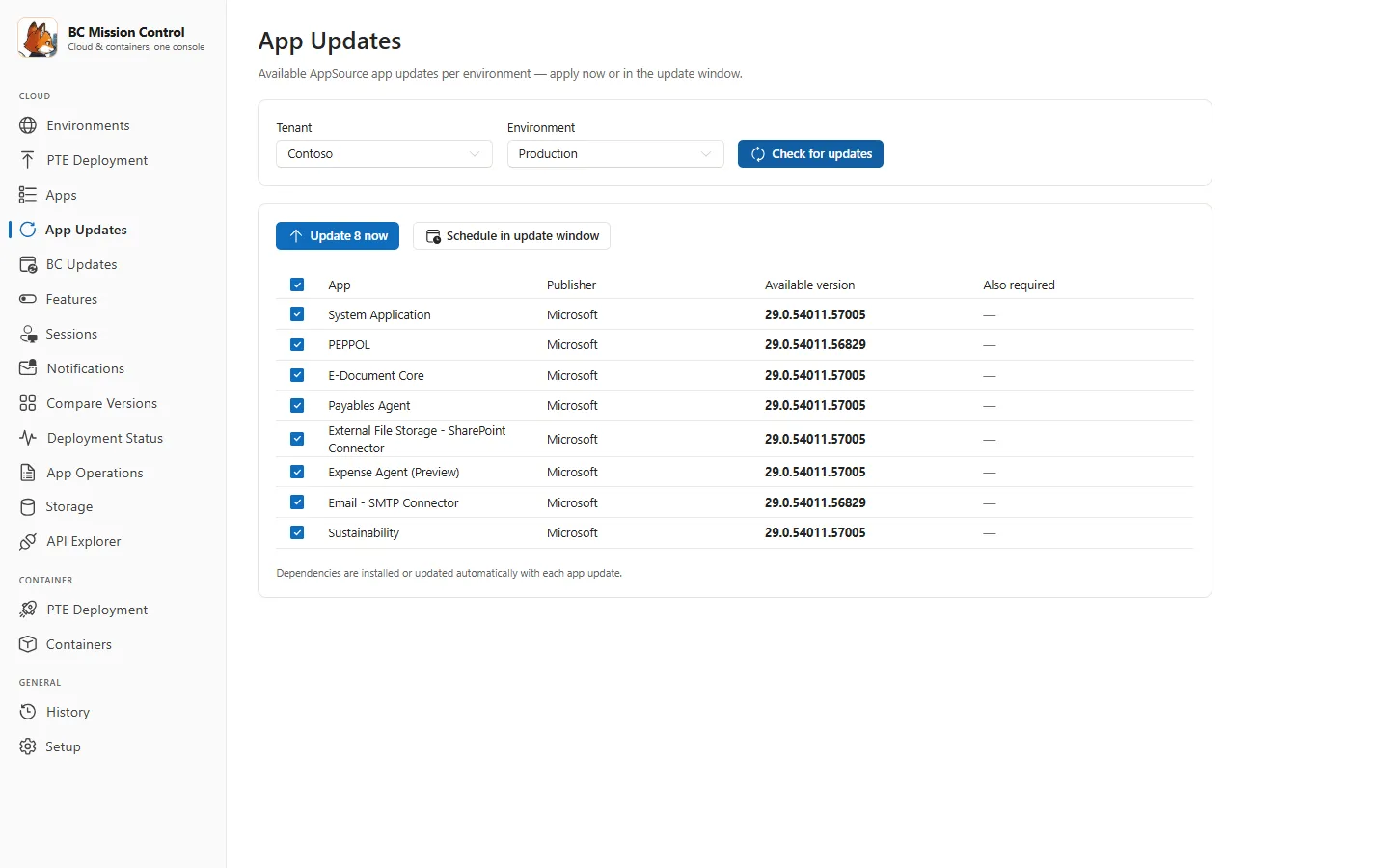
The app uses Business Central’s Admin Center and Automation APIs for its cloud management features. It also includes an API Explorer, which lets you call Business Central APIs as your signed-in user.
For local development, you can create and track Docker containers and deploy extensions to them. You’ll need Docker Desktop, PowerShell 7, and BcContainerHelper for container work, but not for cloud management.
The README feature list has the full list. The user guide explains how each page works.
Getting started
To get started, you need to download the latest version and run the app.
You do not need to install Node.js or download the source code.
- Download
BCMissionControl.exefrom the latest release. - Save it in a folder where you want to keep the app.
- Double-click
BCMissionControl.exe.
If you’d rather run the app from source or build the EXE yourself, the README has source setup instructions and instructions for building the EXE.

Windows SmartScreen may show a warning because the EXE is not code-signed. Only proceed if you downloaded it from this project’s GitHub release page and trust the file. Select More info, then Run anyway, if Windows offers it.
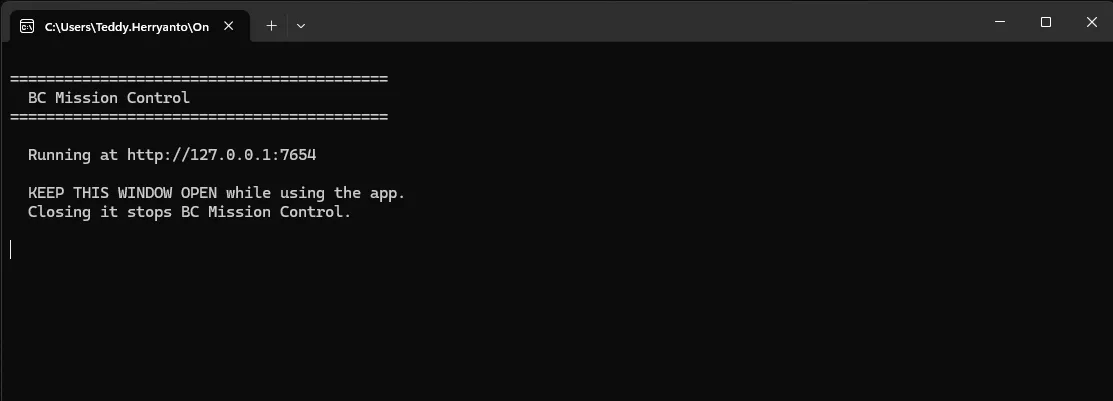
Your browser opens at http://127.0.0.1:7654, unless you have configured a different port in Setup.
Keep the console window open while you use the app. Close it to stop the app.
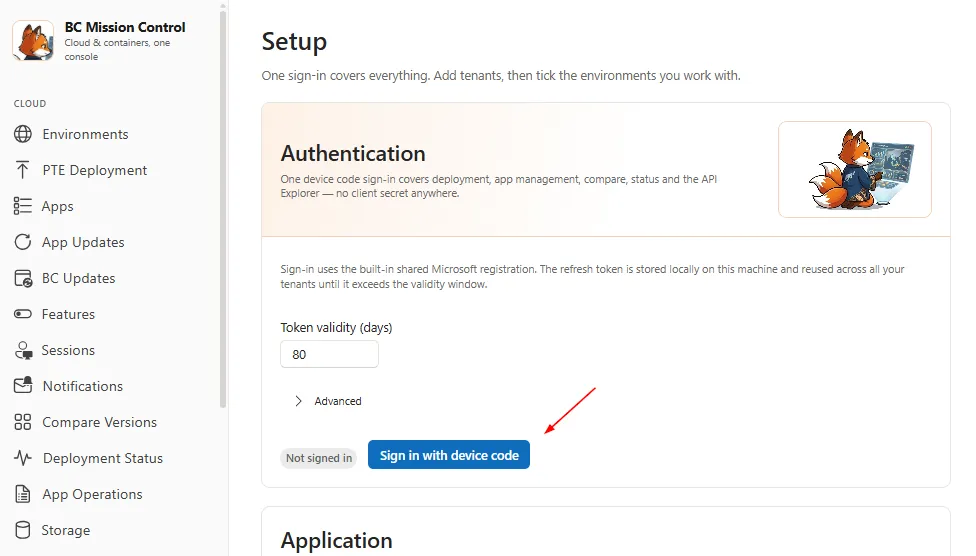
Once the app opens, select Setup at the bottom of the left menu. Choose Sign in with device code and sign in with your Microsoft work account.
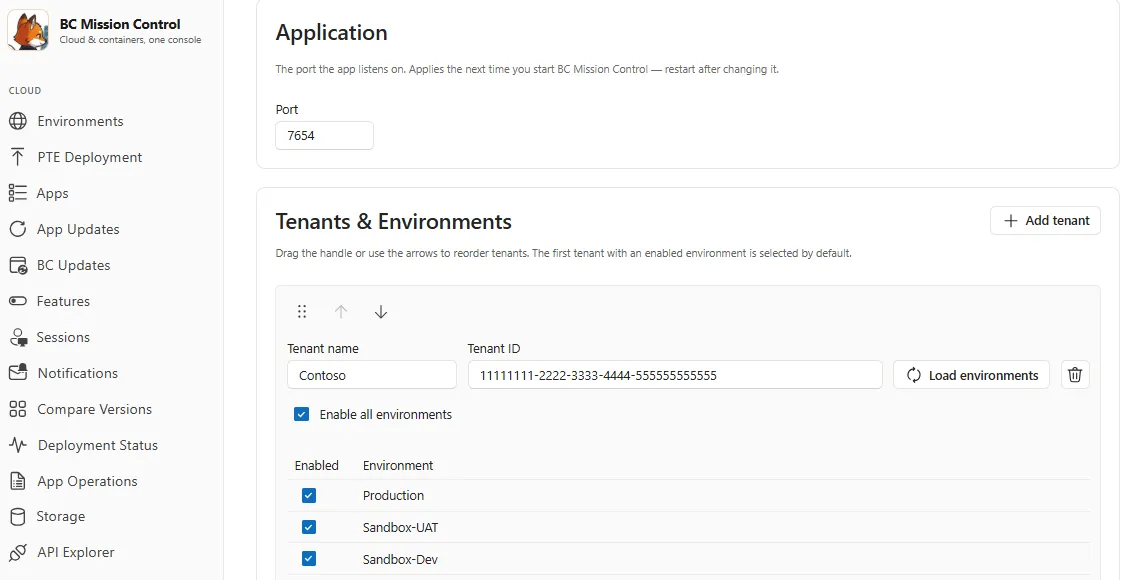
Next, select Add tenant, enter a friendly name and the tenant ID, then load your environments and select the ones you want to use.
Once you’ve added a tenant and selected the environments you want to work with, you can start using BC Mission Control.
Give it a try
If you give BC Mission Control a try, let me know what works well and what could be better. If you find it useful, consider giving the GitHub repository a star to help others discover it.